Crop a Group Photo for Tiny Desk AI
Last updated:
Save a separate head-and-shoulders crop for each person in your photo app, then assign the portraits to your band.
| One file each | A separate portrait for each performer. |
|---|---|
| Keep in frame | Hair, chin and shoulders, with other faces outside the crop. |
One group photo, two separate portraits
Save the person in blue and the person in green as separate portraits. Repeat the same process for a group of three or five.
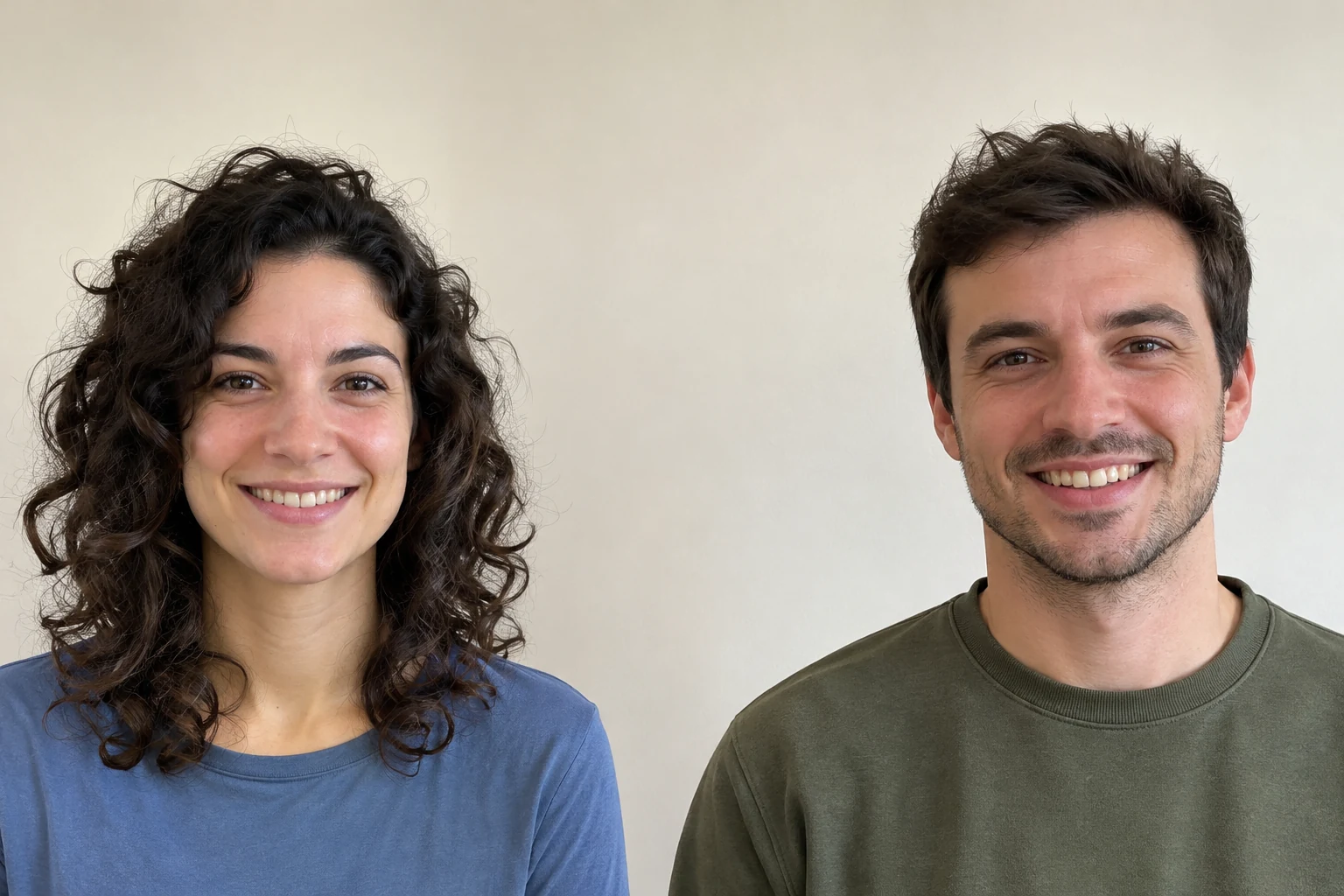
Left person cropped
Right person cropped
Check the original before cropping
Get the original from the photographer and zoom in on each participant’s eyes and hairline. If their face is already tiny or blurred, choose a closer solo photo.
Use a freeform crop to keep the head and shoulders, then check the edges. Choose another photo if another face overlaps the person or separating them would cut off their hair or chin.
Save each person on iPhone
1. Open the original group photo in Photos and duplicate it. Edit that duplicate.
2. Tap Edit, then Crop. Drag the frame’s corners around the first participant and tap Done.
3. Return to the original, make another duplicate and crop the next participant. Repeat until each person has their own copy.
Save copies in Google Photos on Android
1. Open the original group photo in Google Photos. Tap Edit, then Crop.
2. Adjust the frame around one participant. Choose Save as copy to create a separate cropped photo.
3. Open the original again, crop the next person and save another copy. Start each crop from the original.
Assign each saved portrait to a role
For example, put the blue-shirt portrait in the first row and choose lead. Put the green-shirt portrait in the second row and choose sax. Select your cast size, check each portrait and role, then follow the creator’s prompts.
Each image can be JPEG / PNG / WEBP, up to 10 MiB. If an iPhone export is HEIC, follow the photo guide to export a JPEG before choosing the file.