How to Post a Tiny Desk Video on TikTok and Instagram Reels
Last updated:
Save the 9:16 vertical MP4 to your phone. Choose the original to keep the video’s sound or the silent copy to add music in the app. You can use the same file in both apps.
1. Save the MP4 to your phone
Sign in to My videos in your phone browser and open the completed video. Tap Download original MP4 to keep its sound, or Download silent MP4 if you plan to add music in the app.
Play the downloaded file once. On iPhone, look in Downloads in Files. If the app only shows your photo library, use Save Video in the MP4’s share menu to copy it to Photos. On Android, confirm the file is in Downloads, then find it in the upload gallery or file picker.
2. Upload and post on TikTok
Open TikTok, tap + at the bottom and select the saved MP4 from your gallery. In the editor, check the beginning and end to make sure you imported the full clip.
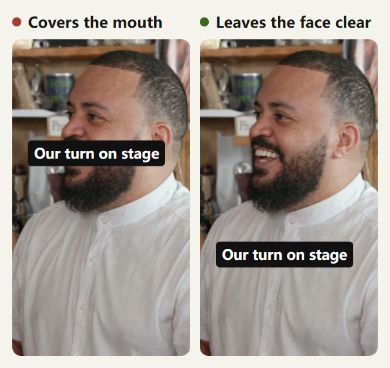
Use Text in the editor for on-screen subtitles, then press and drag the text away from faces. For a silent MP4, use Add sound and listen through the whole clip. For an original MP4, listen to its sound before layering on music.
Tap Next, select a cover, write your post caption and check who can see it. Tap Post when ready. You can also save a draft.
3. Upload as a Reel on Instagram
In Instagram, tap +, choose Reel and select the MP4 from your gallery. Keep the original 9:16 framing and check that zooming has not cropped heads or instruments.
Add on-screen text in the preview or editor and check where it lands after each cut. If you want to replace the soundtrack, select music with the audio tool and listen from start to finish.
Tap Next to choose a cover, write your post caption and check the audience on the sharing screen. Tap Share when ready. You can reopen the video from the Reels tab on your profile.
4. Place subtitles clear of faces
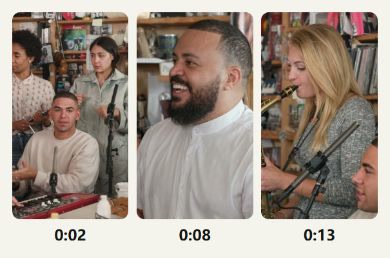
Start with one or two short lines and drag them into open space. In the same lead-singer shot below, the shirt leaves room for text and keeps the mouth and expression visible. Leave room for the controls on the right and the username and post caption near the bottom, then preview full screen.
Check every cut. A good spot in the lead shot can cover a face or the saxophone in the next shot. Split the subtitle and adjust its timing and position if needed. Add the post caption on the final screen and save on-screen text for words viewers should read during playback.
5. Check picture and sound before and after posting
Watch the full preview before sharing. Check orientation and crop at the start, the face and subtitles in the lead close-up, and the hands and instrument in the sax shot. After posting, reopen the video from your profile and check that the app’s buttons and post caption leave the important details visible.
Listen to the saved MP4, the app preview and the published video on the same phone. Unmute the player and turn up media volume. If the original plays with sound locally but goes quiet in the app, check the original and music levels and look for a sound availability notice. Add and preview a track in the editor if you started with the silent MP4.